It’s incredibly frustrating when notifications aren’t notifying! Taking these actions nearly always resolves the issue.
Allowing notifications in browser & desktop app settings
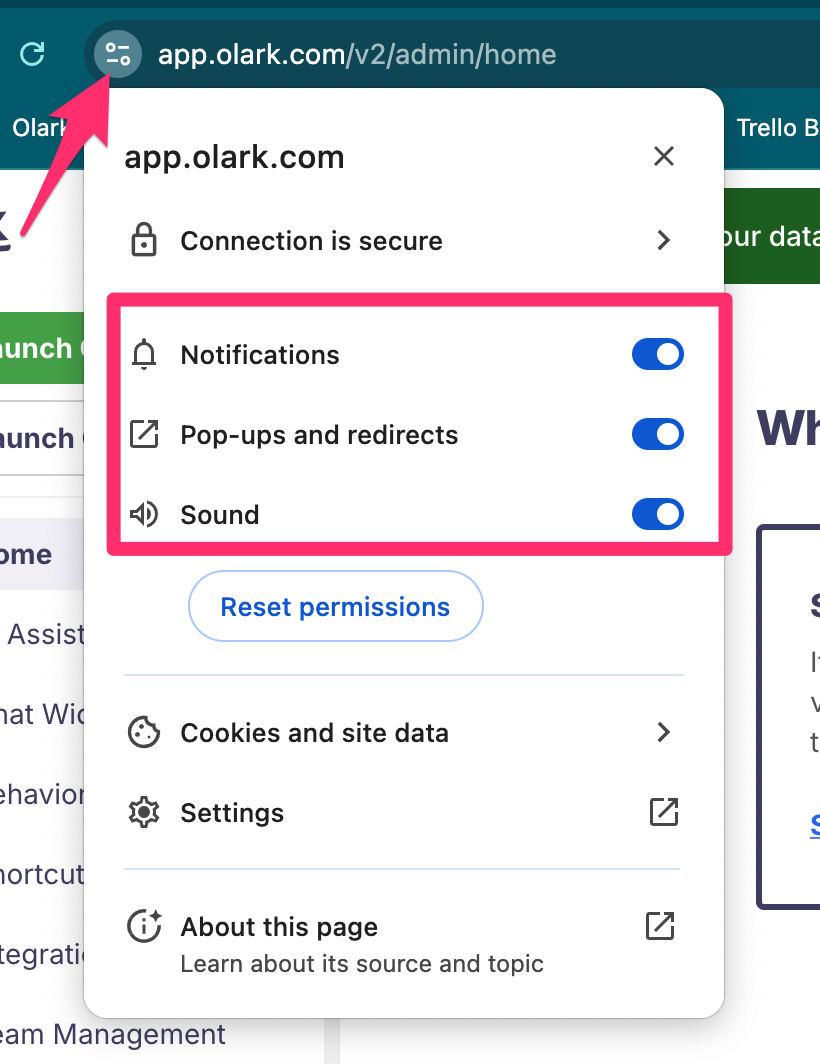
Open app.olark.com in your browser and visit the settings. Confirm that Notifications, Pop-ups and redirects, and Sound are all set to enabled. This article will walk you through how to do so: Desktop Notifications and Sounds
Allowing notifications in system settings
Next, you’ll want to make sure your operating system is set to allow desktop notifications from Chrome and that DND and/or focus mode aren’t blocking them.
-
This article will walk you through those settings for your specific version of Windows : Notifications and Do Not Disturb in Windows
-
And this article for Mac : Turn a Focus on or off on Mac
Ensure notifications are audible
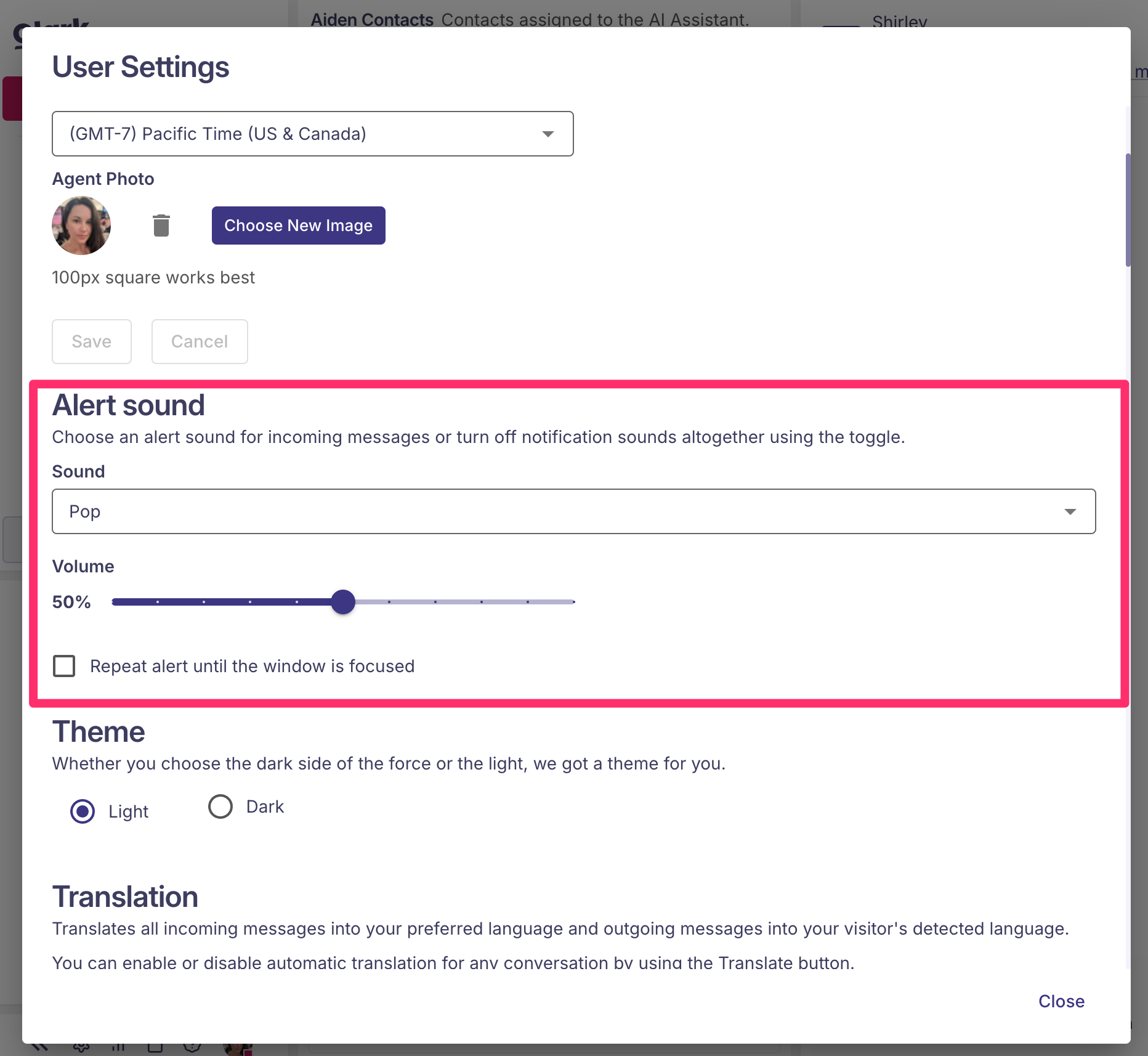
Lastly, you can increase the volume of the sound notification by logging into app.olark.com, clicking your avatar in the bottom left, choosing “user settings” and then sliding the Alert Sound volume up. You can also check the box for “repeat alert until the window is focused” if you’d like the chat message notification to keep pinging until you’re able to click into the Olark tab.