Learn how to integrate Olark with Drupal, the free software that allows you to easily organize, manage and publish your content, with many customization options.
Drupal 8 & 9
-
From your Drupal admin panel, click on: Configuration > Text formats & editors > (+ Add text formats)
-
Create a new format and name it something like, “Unfiltered”. Make sure all filters are disabled and then save.
-
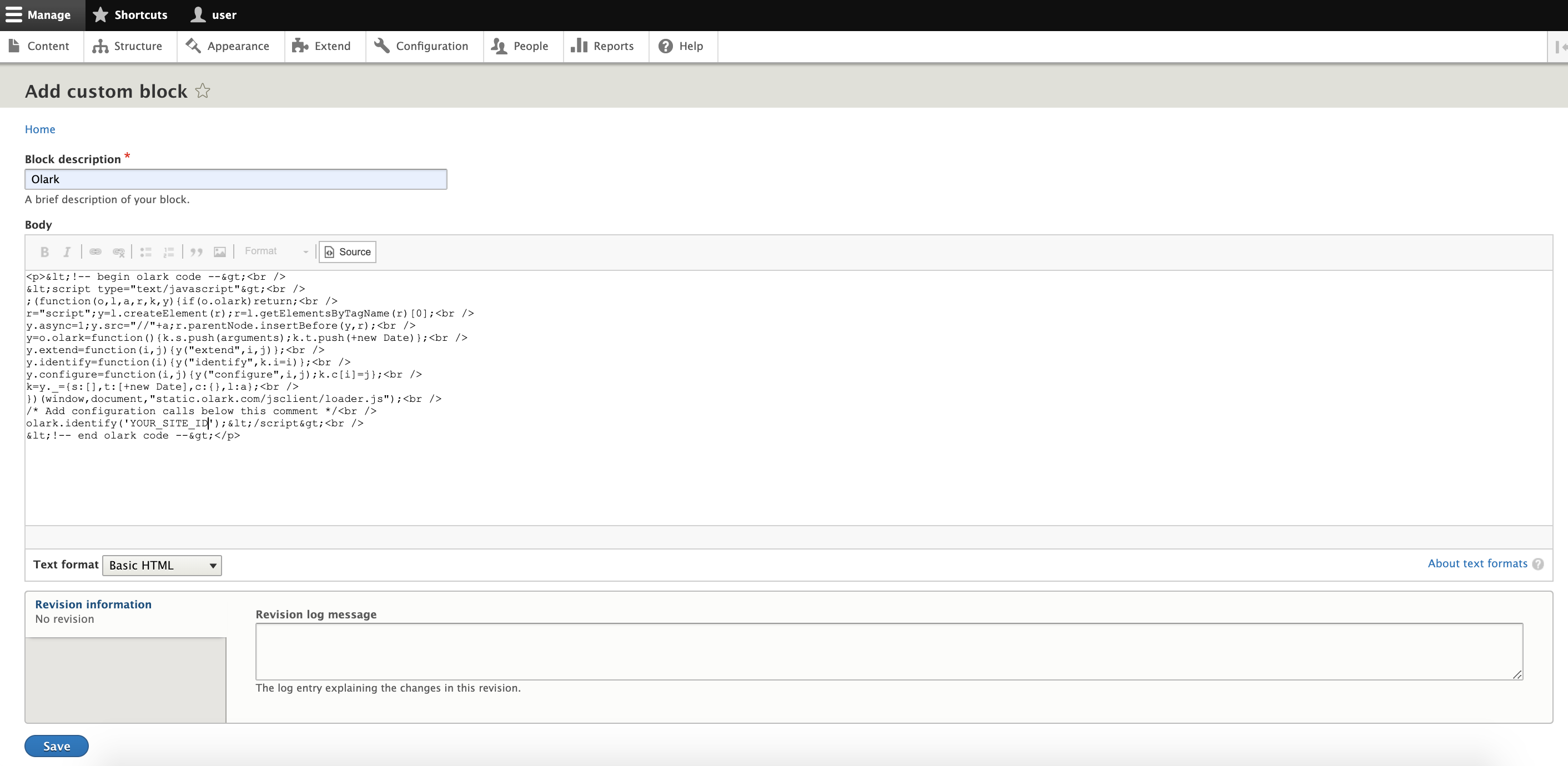
From the top of the page, navigate through: Manage > Structure > Block Layout > Custom block library > (+ Add custom block)
-
Enter in, “Olark” for your Block description, and then copy and paste your Olark installation code into the Body section. Be sure to double check that your 13-digit Olark Site ID is entered in the end of your Olark code when pasting it into the body. Click Save to finish.
Drupal 7
Note: Drupal 7 was deprecated in November of 2022
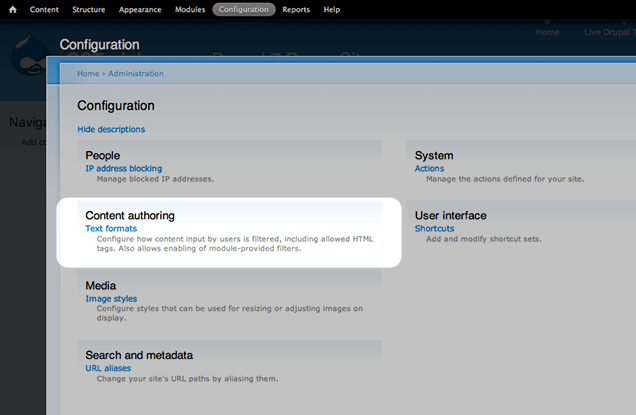
- Log into your Drupal admin and go to Configuration > Content Authoring > Text Formats
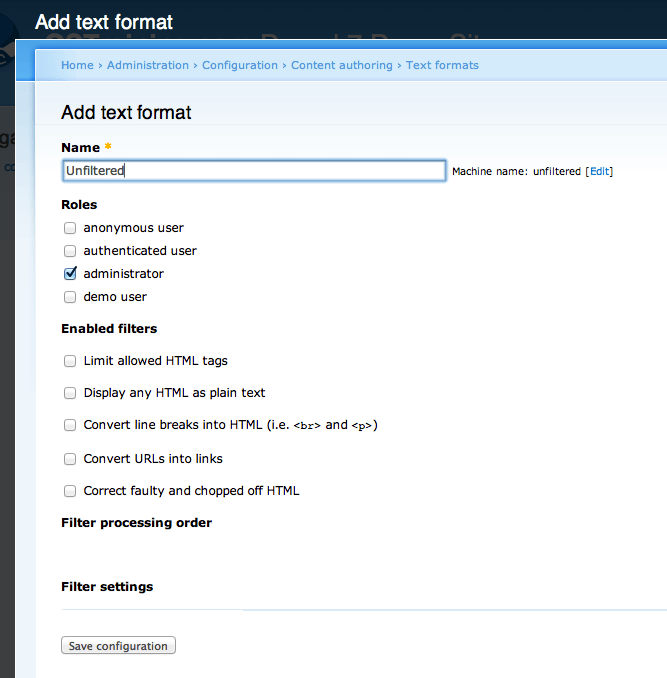
- Create a new format and name it something like “Unfiltered”. Make sure all filters are disabled and then save.
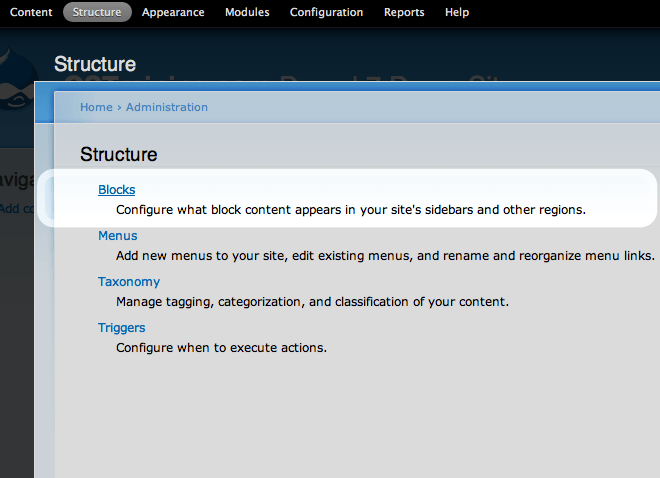
- Go to Structure > Block and then Add Block
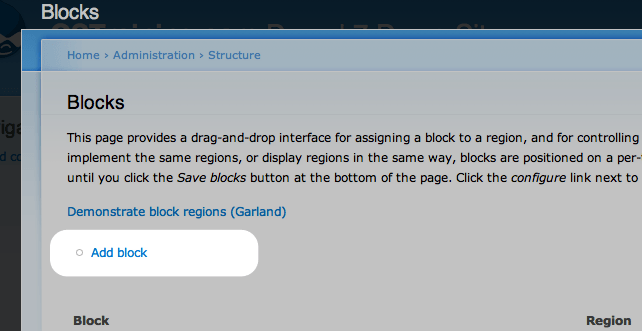
- Create your block and call it “Olark”.
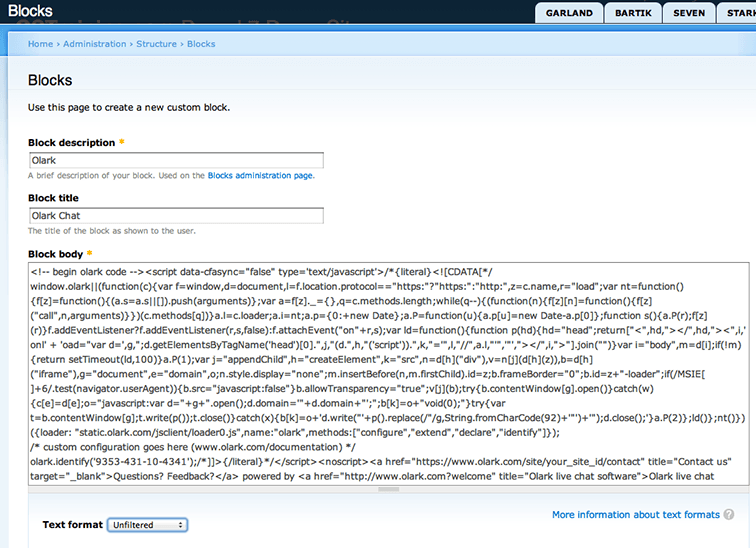
- In the block body place your Olark Code:
Log in and copy your Olark embed code.
-
Change the Text Format to the new Unfiltered type you created then hit save
-
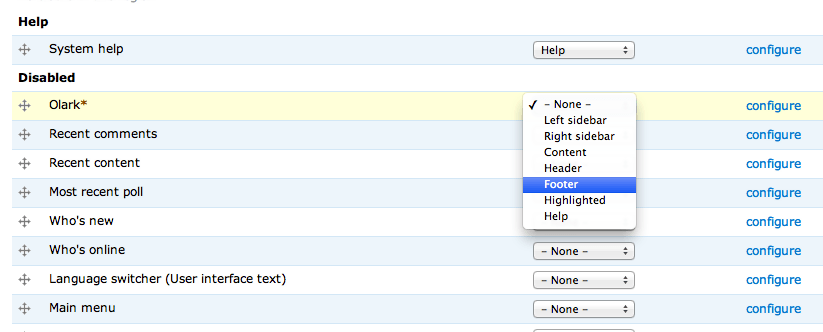
Enable the Olark block by moving it to the footer and hit save