Enabling notifications and sounds
app.olark.com (and legacy chat.olark.com) requires the use of desktop notifications to ensure agents receive incoming messages. The first time you log in you’ll see a banner asking you to enable desktop notifications in your browser.
If you are having issues with desktop notifications or sounds, it’s likely that browser permissions have been denied. To check, use the guide below based on the browser you are using.
Google Chrome
To ensure that Chrome is accepting incoming notifications from Olark you’ll want to set both Sound and Notifications to “allow” for Olark.
1. Open app.olark.com (and/or chat.olark.com) in Chrome and click on the settings menu icon to the left of the website address. Select Site settings (or Settings if you don ’t see Site Settings) near the bottom of the menu
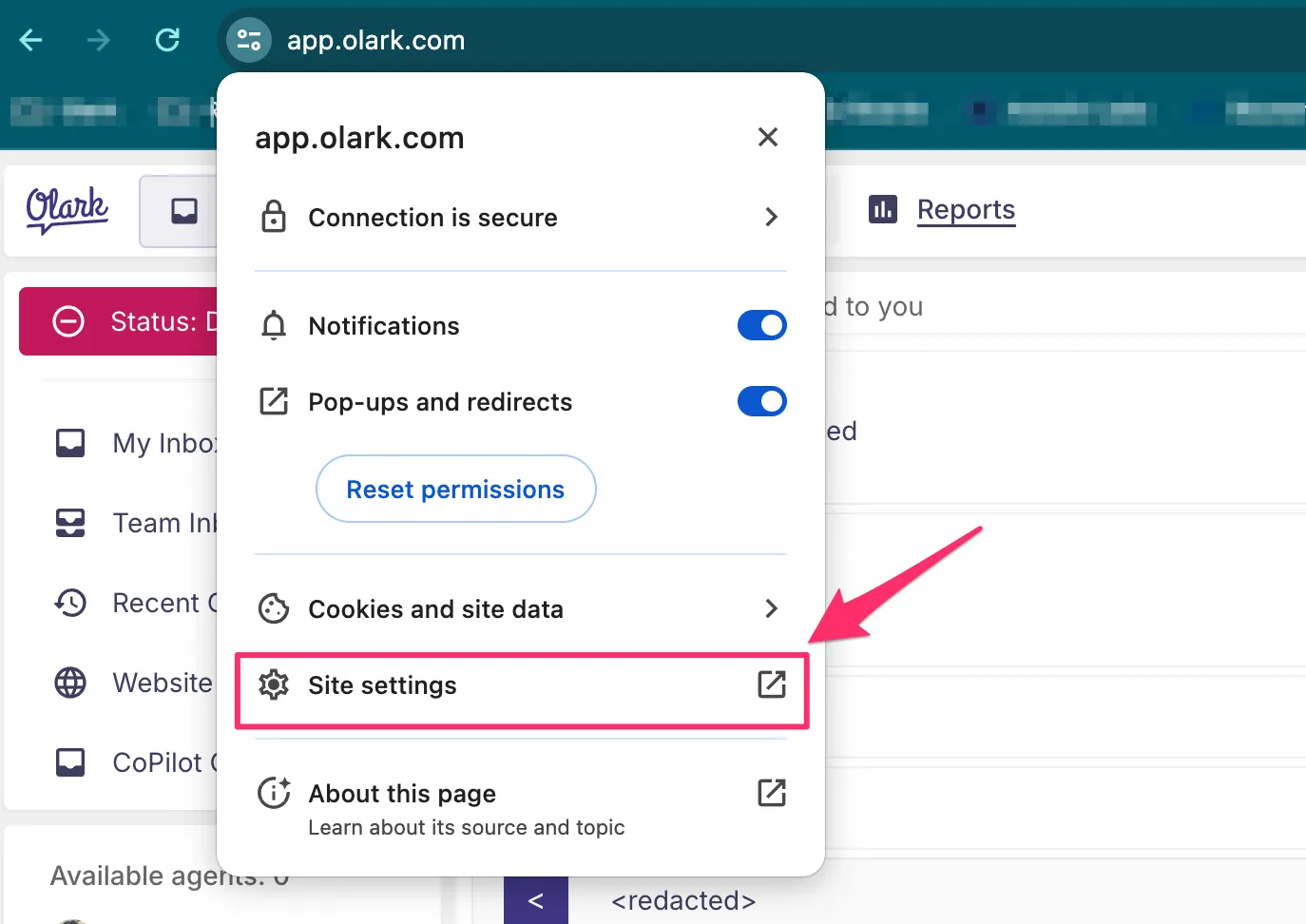
2. On the Site settings page, scroll down to Notifications and select Allow
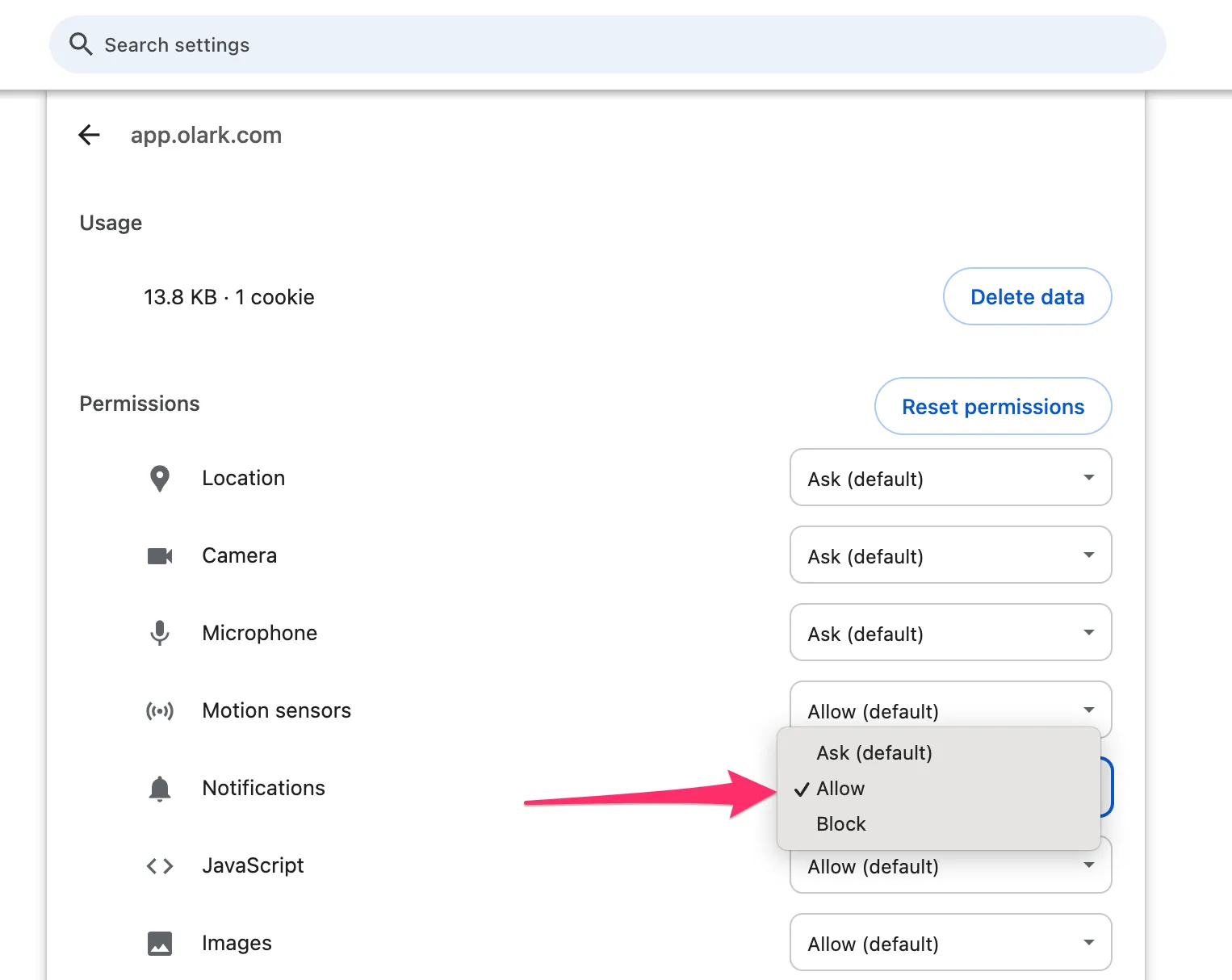
Set Notifications to allow
3. On the Site settings page, scroll down to Sound and select Allow
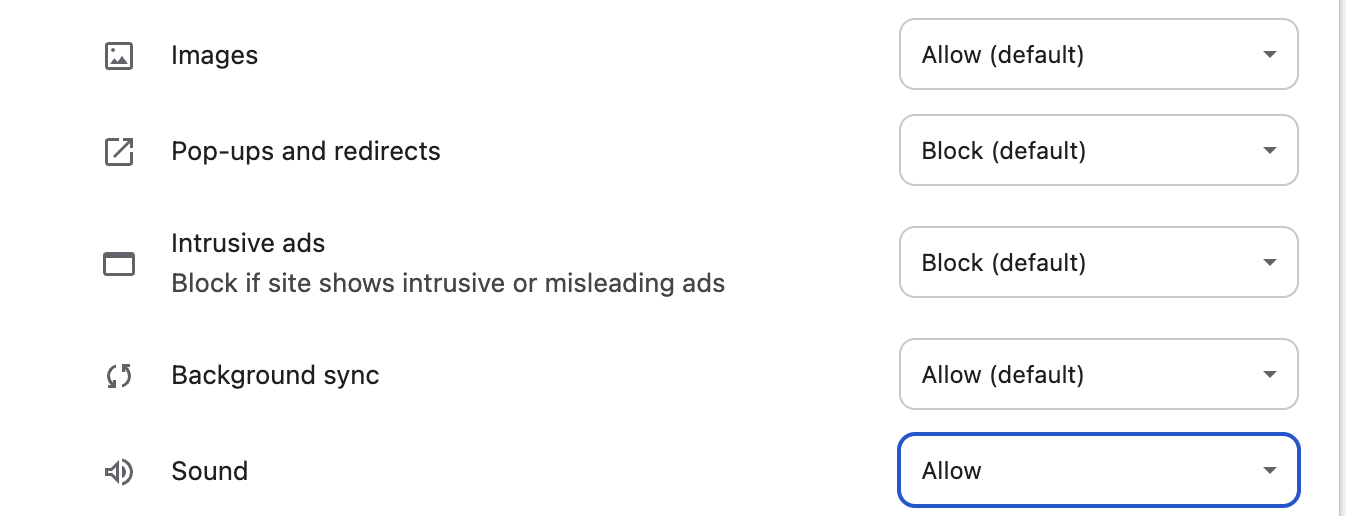
Set Sound to allow
4. When you click on site information you should now see
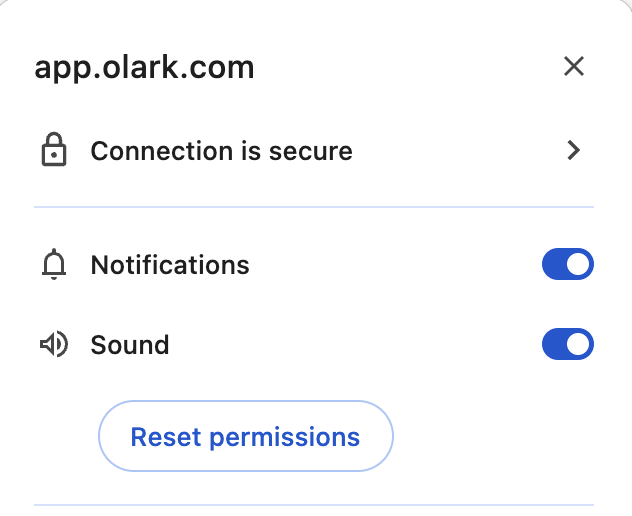
Notifications and Sound are set to “allow”
Mozilla Firefox
To ensure that Firefox is accepting incoming notifications from Olark:
1. In Firefox, click the hamburger menu in the upper right corner next to the address bar. Choose settings from the dropdown
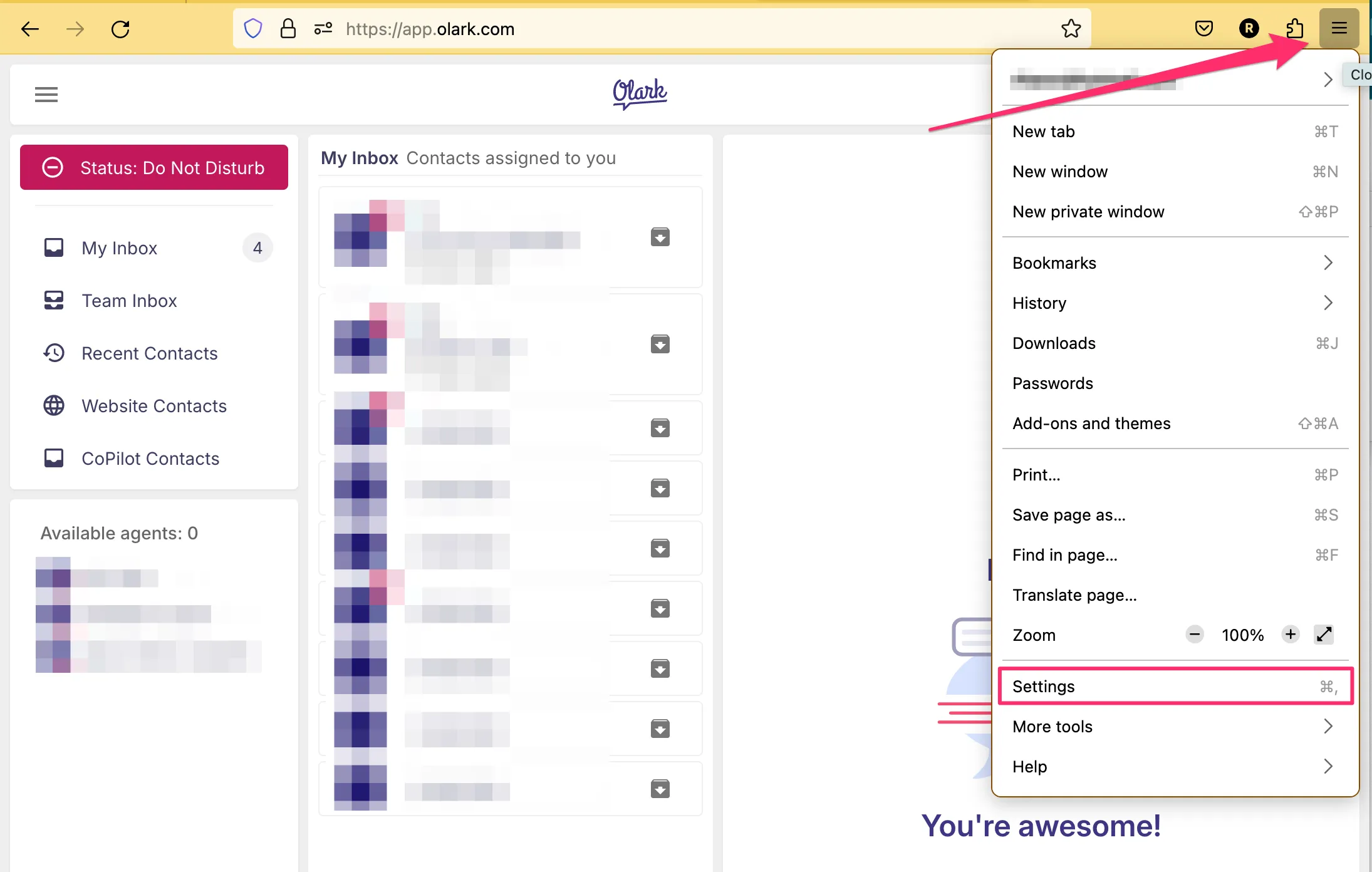
Toggle open the Firefox menu and choose Settings
2. On the Settings page, choose Privacy & Security from the left hand menu. Scroll down the page until you find Permissions. Under Permissions, click the Settings button next to Notifications
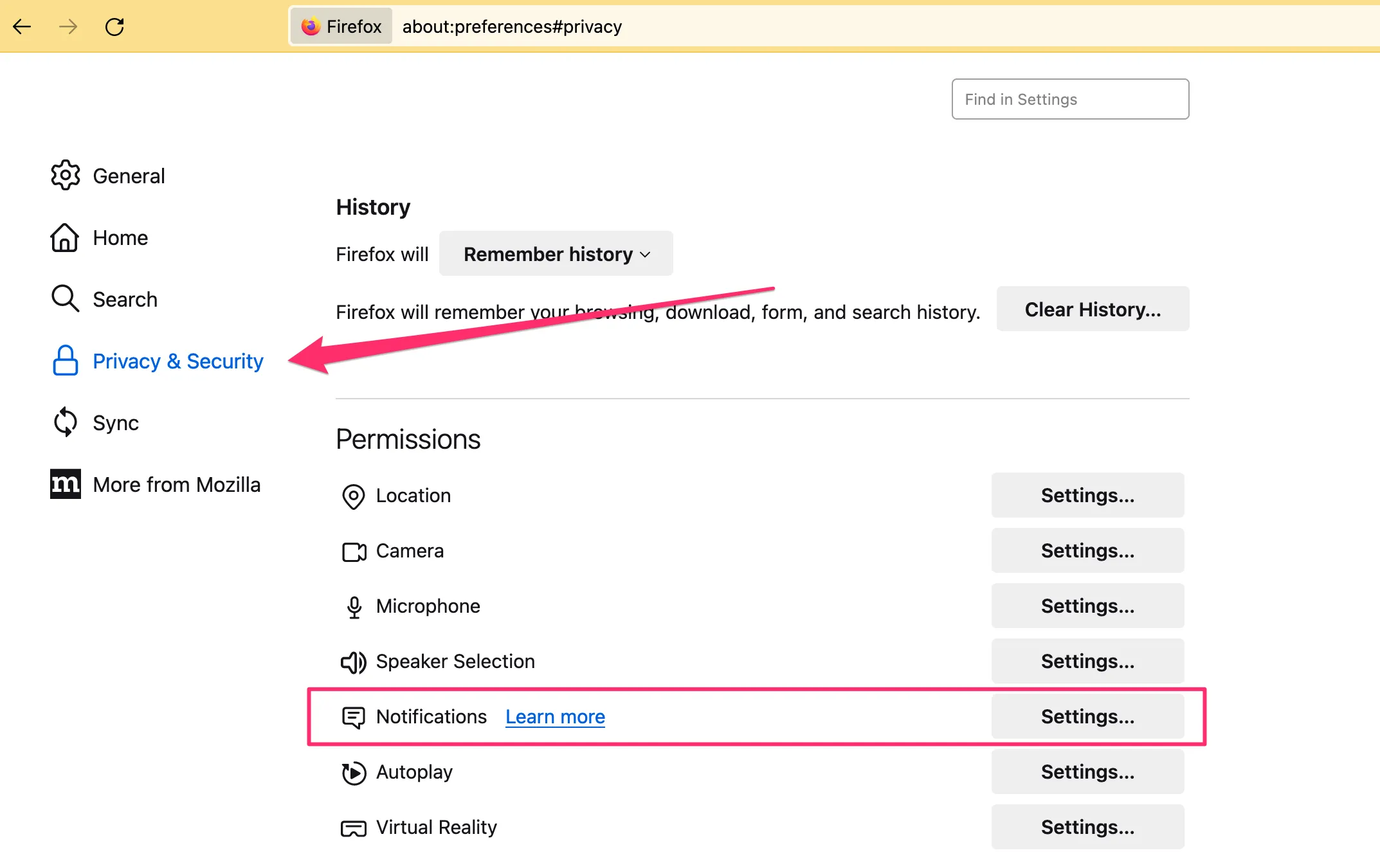
Privacy & Security > Notifications
3. When the Notification Settings box appears, click on https://app.olark.com , select Allow ,**** and click Save Changes
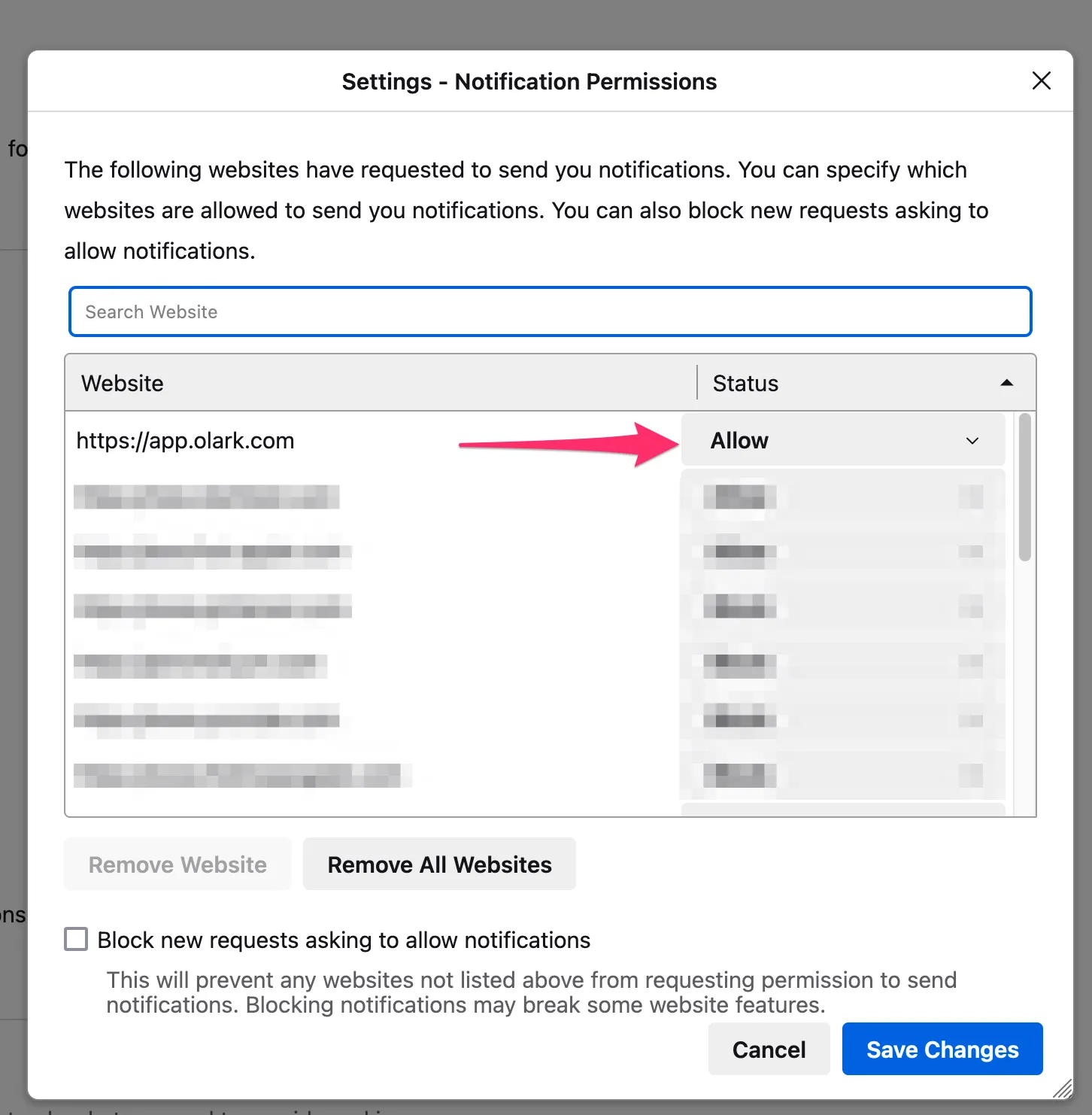
Set app.olark.com to “allow” and click the Save Changes button
Safari
To ensure that Safari is accepting incoming notifications from Olark:
1. Open Safari
2. Enter app.olark.com or chat.olark.com (whichever you use) in the address bar and hit enter
3. Click the settings icon in the address bar and choose Website Settings
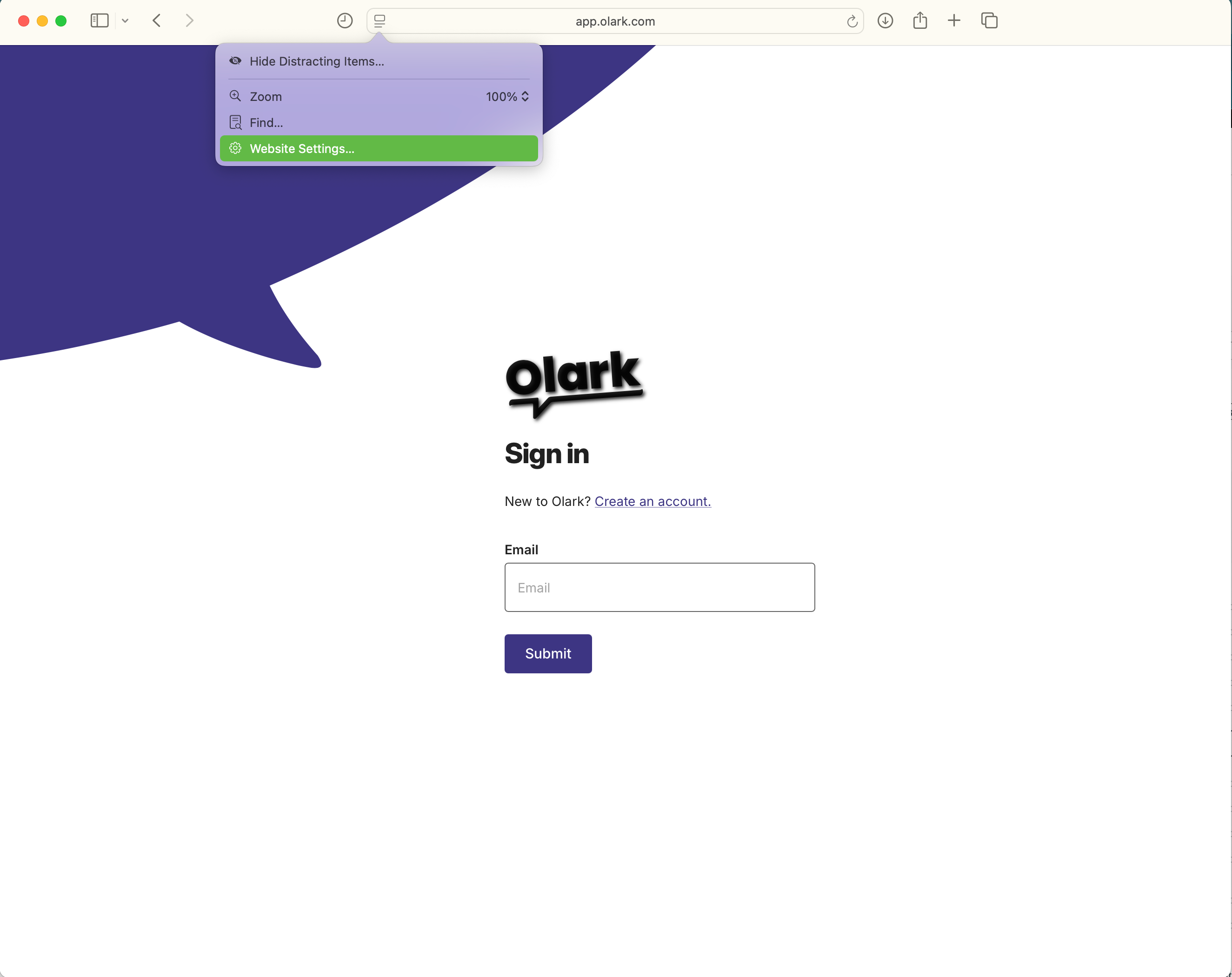
4. Set Auto-Play to Allow all Auto-Play and Pop-up Windows to Allow
Microsoft Edge
To ensure that Edge is accepting incoming notifications from Olark:
1. Open Edge
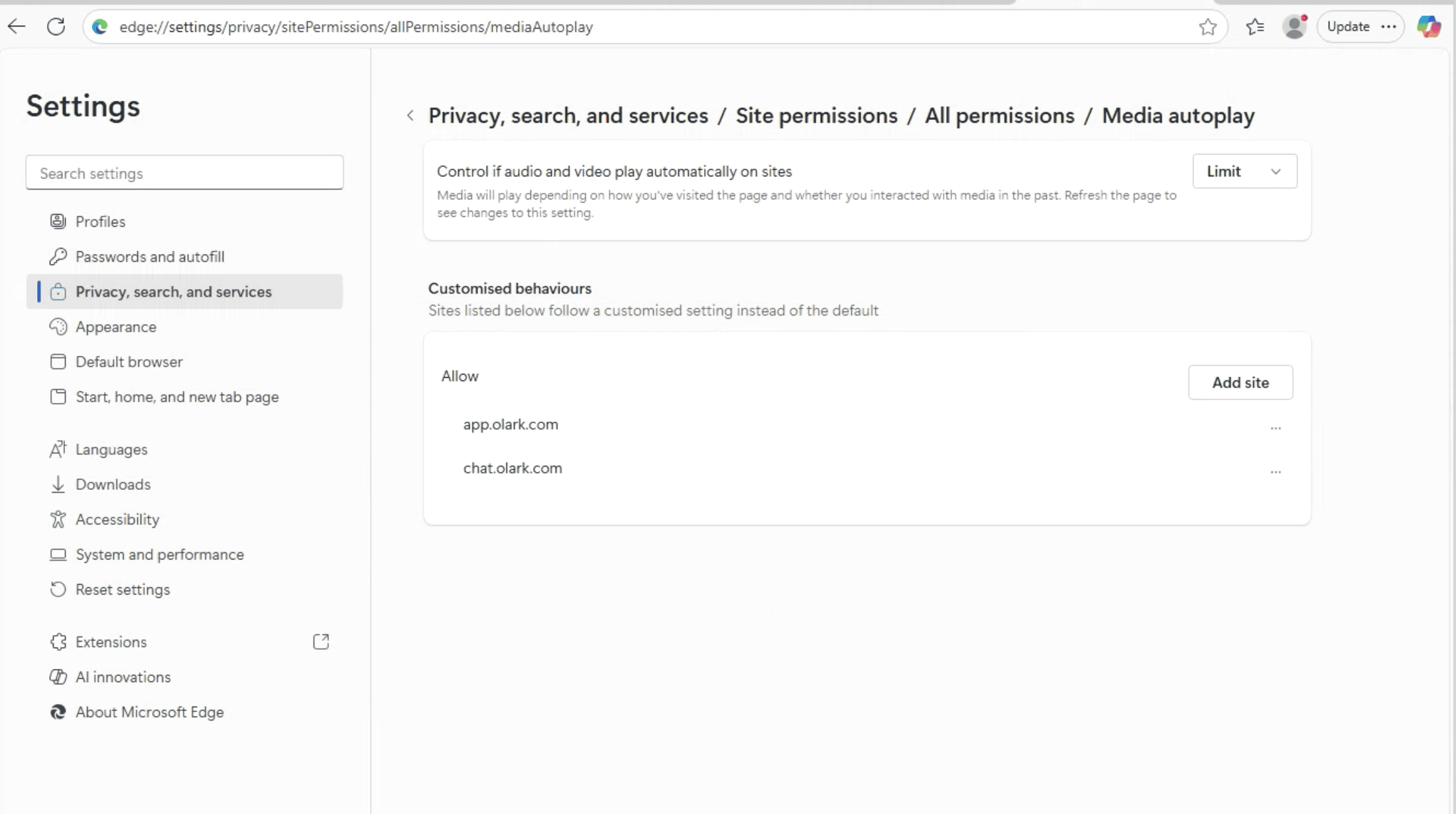
2. Copy and paste this shortcut into the address bar: edge://settings/privacy/sitePermissions/allPermissions/mediaAutoplay
3. In the Customized Behaviors section, click add site, and add app.olark.com andchat.olark.com
4. Navigate to app.olark.com
5. Click on the lock icon to the left of the website address and choose Permissions for this site from the dropdown
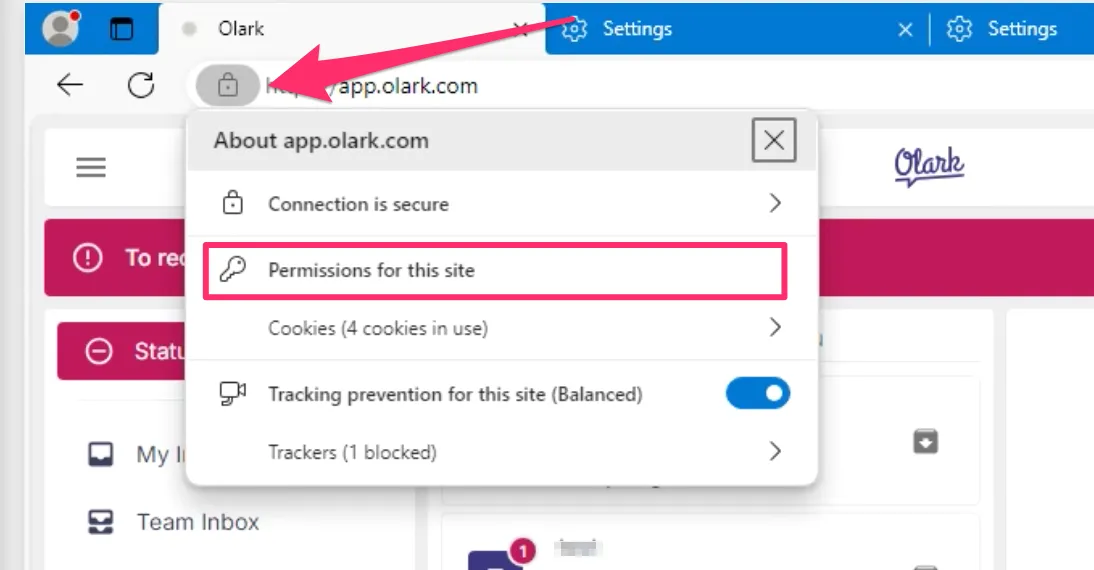
Toggle open the lock icon menu and select Permissions for this site
6. In the right column of the settings page set Notifications to Allow and Sounds to Allow
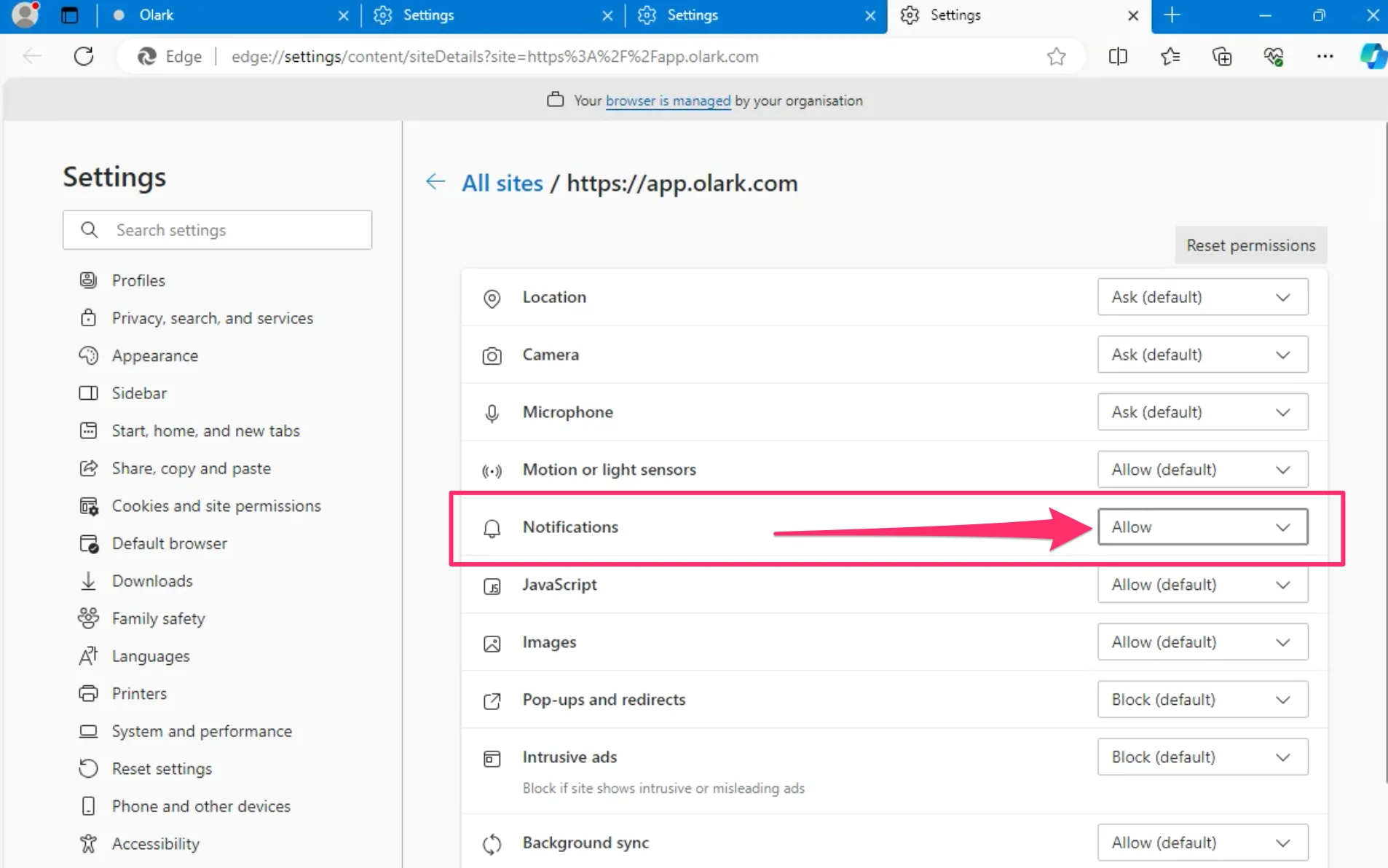
Toggle the Notifications setting dropdown to Allow